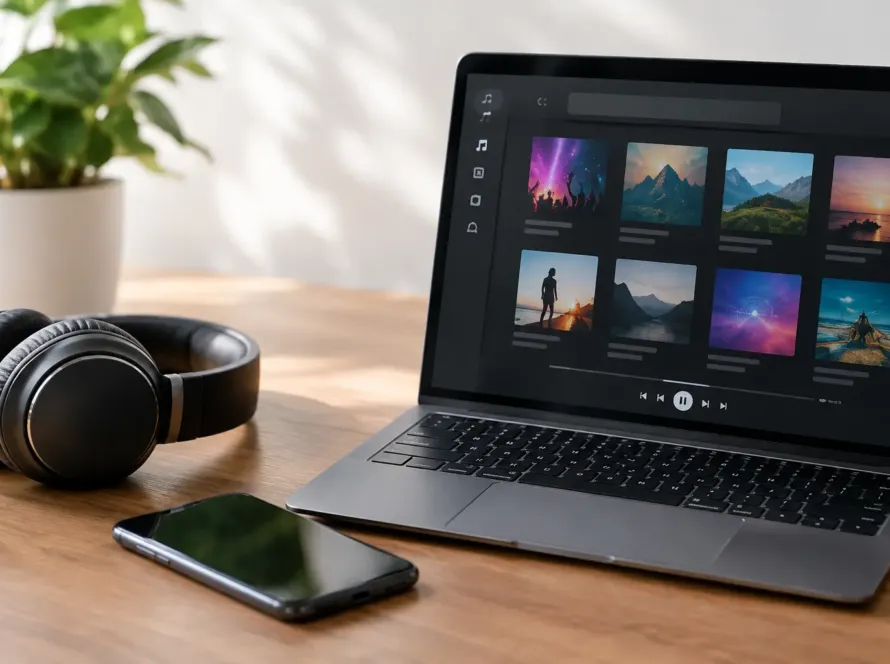
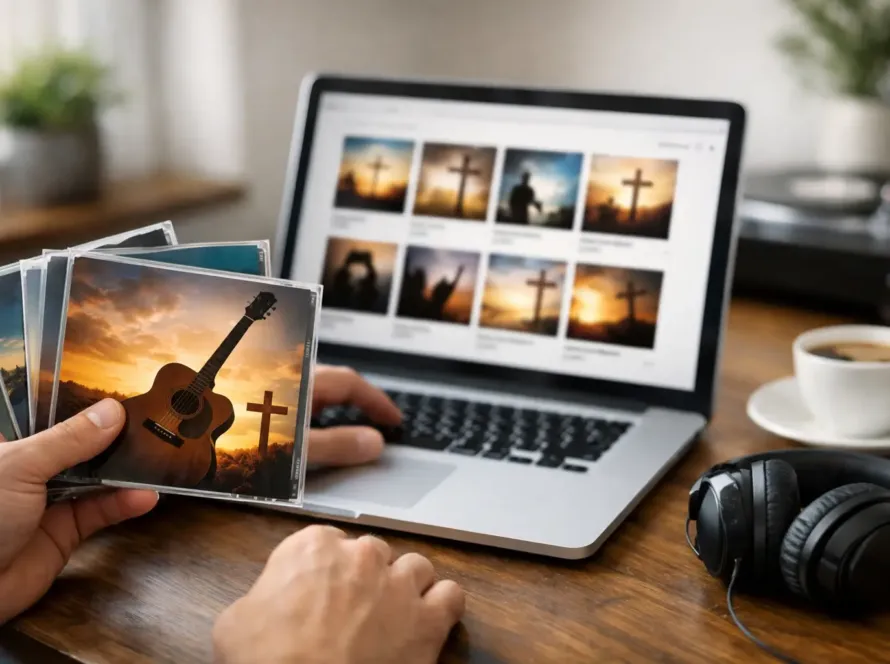
A worship song can meet you in places where a signal cannot. It may be early in the morning before the house wakes up, on a long drive, in a hospital waiting room, or during a quiet moment when your heart simply needs to remember that HE is near. When you save downloaded songs offline, the music you purchased stays ready for those moments – without depending on Wi-Fi, mobile data, or a streaming subscription.
Buying a digital song gives you something personal: a music file you can keep, organize, and play on compatible devices. A few simple habits can help you protect that gift, find it when you need it, and keep your worship music close at hand.
Start by Finding the Downloaded File
After purchasing a song or album, the file usually downloads to a default folder on your device. On a computer, that is often the Downloads folder. On an iPhone or iPad, look in the Files app, commonly under Downloads or iCloud Drive. On many Android phones, open the Files or My Files app and check the Downloads folder.
If you cannot find the song immediately, do not download it again and again. Search the song title, artist name, or file type instead. Most music downloads arrive as MP3 files, a common format that plays on many phones, computers, tablets, and music players.
Take a moment to play the file before moving it. This confirms that the download finished correctly and helps you recognize the song when you begin organizing your collection. A brief check now can prevent frustration later when you are looking for encouragement and find an incomplete file instead.
Save Downloaded Songs Offline in a Music Folder
A Downloads folder is useful for receiving files, but it is not the best long-term home for music. That folder can become crowded with receipts, documents, photos, and duplicate files. Move your purchased songs into one clearly named folder, such as “Worship Music,” “Steve Adams Music,” or “Faith and Encouragement.”
On a computer, create the folder in Music or Documents, then drag the downloaded files into it. On a phone, use the Files app to move or copy the songs into a folder you will remember. Keep the original song title whenever possible. A name like “I’m Gonna Trust YOU Anyway” tells you far more than a random string of numbers.
If you have several albums or many individual tracks, organize them by artist and release. For example, you might place all songs from Safe Within HIS Arms inside one album folder and keep I’m Still Here in another. This makes it easier to listen to a full message in the order it was created, rather than searching through one long list of files.
Add Your Music to the App You Actually Use
Saving a file on your device and seeing it inside your preferred music app are sometimes two different things. The file may already be safely offline, but you may need to import it into an app before it appears beside the rest of your music library.
On a Computer
On a Windows computer, open the music app you use and look for an option such as Import, Add Folder, or Add Files. Select your worship music folder. On a Mac, you can add files to your music library by opening the Music app and importing the songs or dragging them into the library.
Once imported, create a playlist for the moments that matter most. You may want a morning prayer playlist, a playlist for driving, or one called “Trust YOU Anyway” for difficult days. A playlist does not change the original files. It simply gives you a simple path to the songs your soul reaches for often.
On an iPhone or iPad
Apple devices can play audio files stored in the Files app, but some listeners prefer to add purchased music to their main music library. This commonly requires syncing the files from a computer through the Music app. The exact steps can vary based on your device and software version, so take your time and make sure the songs have copied before disconnecting.
If syncing feels like more than you need, playing the MP3 directly from Files can still be a practical offline option. The best choice depends on whether you want your purchased music mixed into your regular library or simply available whenever you open a dedicated folder.
On an Android Phone
Android phones generally make local music files easy to manage. Move your songs into a Music folder, then open a music player that supports files stored on the device. If the music does not appear right away, close and reopen the player or use its scan or refresh option.
Avoid assuming that every streaming app will accept outside MP3 files in the same way. Some do, some have limitations, and some focus only on their own catalog. A local music player is often the simplest choice when your priority is dependable offline listening.
Keep a Backup Before You Need One
Phones get replaced, computers fail, and accidental deletions happen. A backup is not about expecting trouble. It is about caring for what you have purchased so that a lost device does not mean losing the music that has encouraged you.
Keep one copy of your downloaded songs on your computer and another copy in a trusted backup location, such as an external drive or secure cloud storage you control. If you use cloud storage, remember that a file may need to be downloaded to the device before it can play without internet access. Look for an option like Make Available Offline, Keep Downloaded, or Download.
It is wise to back up your music soon after purchase, especially before clearing your Downloads folder or changing phones. Keep your purchase confirmation or order information in a safe place as well. That record can be helpful if you ever need to locate the original download details.
Know the Difference Between a Download and Streaming Offline
There are two ways music can be available without an internet connection. The first is a purchased file, such as an MP3, that you download and keep in your own storage. The second is an offline copy created inside a streaming service. Both can be useful, but they are not the same.
Streaming downloads usually work only inside that service’s app and may stop working if a subscription ends, an account changes, or the app needs to reconnect. Purchased digital files give you more personal control. You can back them up, move them to compatible devices, and play them through different music players.
That freedom also comes with a responsibility: protect the files and respect the artist’s work. Keep your purchase for your own listening and avoid sharing copies publicly or sending them widely to others. Supporting independent Christian artists helps make more ministry-centered music possible.
Make Offline Listening Part of Your Rhythm
The most helpful music library is not the largest one. It is the one you can reach easily when you need it. Set aside a few minutes each month to check that your files are still on your device, your playlists still play, and your backup is current.
Before traveling, driving through areas with weak reception, or spending time away from home, download the songs you expect to need directly to the device you are taking. Test one or two tracks with Wi-Fi turned off. That small step gives you confidence that your music will be there when the moment arrives.
Steve Adams Music is created to encourage your soul with worshipful truth, soulful melodies, and reminders of God’s faithful presence. Keep those purchased songs close, not merely as files on a device, but as ready reminders that HE is with you in every season. When the connection around you is uncertain, let the message remain clear: YOU are never alone.